

The Registry Editor is a powerful built-in Windows application that grants access to and allows modification of the Windows Registry. The Windows Registry is a centralized database containing critical configuration settings used by the operating system and all installed software.
⚠️ A crucial safety warning: Making incorrect modifications to the Registry can lead to severe system instability, data loss, or even prevent your computer from booting correctly. Always create a backup of your Registry before making any changes!
Understanding the Windows Registry Structure
The Registry is organized in a hierarchical structure composed of keys and values. At the top of this hierarchy are five distinct "root" keys, also known as Hives, each serving a specific system function:
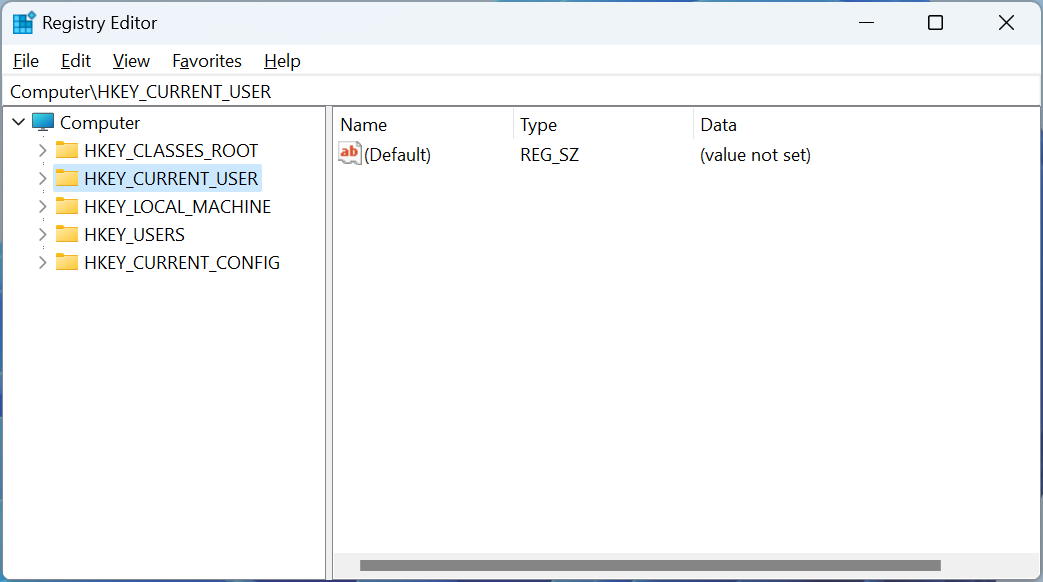
- HKEY_CLASSES_ROOT (HKCR): Stores information about file associations and COM/OLE object classes.
- HKEY_CURRENT_USER (HKCU): Contains configuration settings and preferences specific to the currently logged-in user. Most user-specific customizations are found here.
- HKEY_LOCAL_MACHINE (HKLM): Stores hardware, OS configuration, and software settings that affect all users on the computer.
- HKEY_USERS (HKU): Stores configuration information for all user accounts that have logged onto the computer.
- HKEY_CURRENT_CONFIG (HKCC): Stores volatile information about the hardware profile used by the local machine at startup.
Keys vs. Values
- Registry Keys (Folders): Keys are like folders, containing other keys (subkeys) and values, used to organize and group related settings. For example, HKCU contains subkeys for the user's desktop wallpaper and application preferences.
- Registry Values (Files): Values are like files stored within the keys; they hold the specific data for a configuration setting. Values have different data types to store information as text, numbers, or binary data.
Common Registry Value Data Types
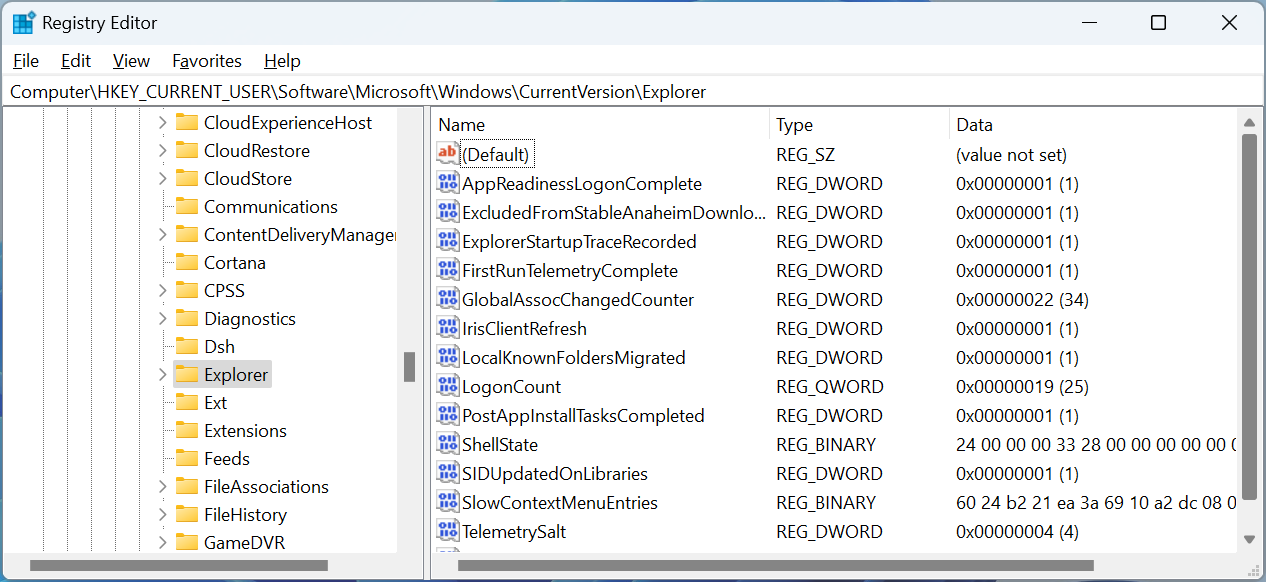
While several data types exist, you will primarily interact with these two:
- REG_SZ: A string value used for text data (e.g., a username or file path).
- REG_DWORD: A numeric value that contains a 32-bit integer, commonly used for boolean (0 or 1) or numerical settings.
- *Other types include REG_QWORD (64-bit integer), REG_BINARY (raw binary data), and REG_MULTI_SZ (multiple strings).*
Essential Operations in the Registry Editor
1. Launching the Registry Editor (Regedit)
The executable file for the Registry Editor is located at C:\Windows\regedit.exe, and it typically requires administrative privileges to run.
- Press the Windows key + R to open the Run dialog box.
- Type "regedit" and press Enter.
- If prompted by User Account Control (UAC), select 'Yes' to proceed.
The editor window is divided: the left pane shows the hierarchical tree structure of keys, and the right pane displays the values within the selected key.
2. Navigating the Registry
Use the left pane to navigate the keys. Click the plus sign (+) next to a key to expand it, or the minus sign (-) to collapse it. Clicking a key displays its corresponding values and data in the right pane.
3. Creating a New Key or Value
To Create a Key:
- In the left pane, right-click on the key you want to create a subkey under.
- Select New -> Key.
- Type the desired name for the new key and press Enter.
To Create a Value:
- Navigate to the key where you want to create the value (in the left pane).
- Right-click on the key and select New, then choose the appropriate data type (REG_SZ or REG_DWORD are most common).
- Give the new value a name and press Enter.
4. Editing Key Data
- In the right pane, double-click on the value you wish to modify.
- The 'Edit' dialog box will appear. Enter the new data into the 'Value data' field.
- Click OK to save your changes.
5. Exporting and Importing Keys (Backup)
Exporting a key creates a .reg file that serves as an individual backup for those specific settings. Double-clicking a .reg file in Windows automatically imports the data back into the Registry.
To Export a Key:
- Right-click on the key you want to back up in the left pane.
- Select Export.
- Choose a location, give the file a name, and click Save.
To Import a Key:
- In the Registry Editor, click File -> Import.
- Navigate to the saved .reg file, select it, and click Open.
6. Renaming Keys or Values
- Right-click the key (left pane) or value (right pane) you want to rename.
- Select Rename.
- Enter the new name and click anywhere to save.
7. Deleting Keys or Values (USE EXTREME CAUTION)
- Right-click on the key (left pane) or value (right pane) you want to delete.
- Select 'Delete' from the context menu.
- Confirm by clicking Yes.
⚠️ IMPORTANT: Deleting a key permanently deletes all subkeys and values underneath it. Only delete keys or values if you are absolutely certain it will not compromise system stability.
Once you are finished, close the Registry Editor by clicking the X button or by navigating to File > Exit.
Frequently Asked Questions (FAQ) 😊
Here are answers to common questions about working with the Windows Registry! :D
Q: What is the most common key I will modify for personal settings?
You will most often modify keys and values under HKEY_CURRENT_USER (HKCU). This hive contains all the settings that customize the Windows environment specifically for your user account, such as display settings, themes, and personal software preferences.
Q: What happens if I forget to back up the Registry and make a mistake?
If you make a minor error, Windows might continue to function with minor glitches. However, a major mistake can corrupt system files, lead to software malfunctions, or prevent Windows from starting. If this happens, you would typically need to rely on a recent System Restore point or, in severe cases, completely reinstall the operating system.
Q: What is the practical difference between a REG_SZ and a REG_DWORD value?
REG_SZ stores human-readable text (strings), like a file path or a computer name. REG_DWORD stores numerical data (32-bit integers), typically used for setting flags (e.g., 0 for disabled, 1 for enabled) or defining limits and counters.